Bramble verifies your API requests through your account's API keys. Should a request fail to include a valid key, Bramble flags with an authentication error.
You can use the Bramble Connector to create, copy, and revoke API
keys. To access your v1 API keys, select the API Keys tab in the top right of the Bramble Connector.
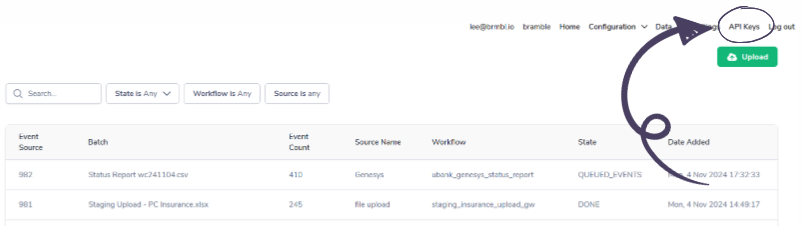
If you use Bramble through a third-party platform, give the platform your API
keys so it can process requests on behalf of your account.
Anyone can use your secret API key to make any API call on behalf of
your account, such as creating check-ins or updating your workflow inventory.
Keep your keys safe by following these best practices:
Grant access only to those who need it.
Don’t store keys in a version control system.
Control access to keys with a password manager or secrets management service.
Don’t embed a key where it could be exposed to an attacker, such as in a mobile application.
Every API key has an Access setting that controls which endpoints it can call:
Full access - the key can call every endpoint.
Custom - the key is limited to the resource groups and permissions you tick. Each resource group has a Read permission (covers GET requests) and a Write permission (covers POST, PATCH, PUT, DELETE).
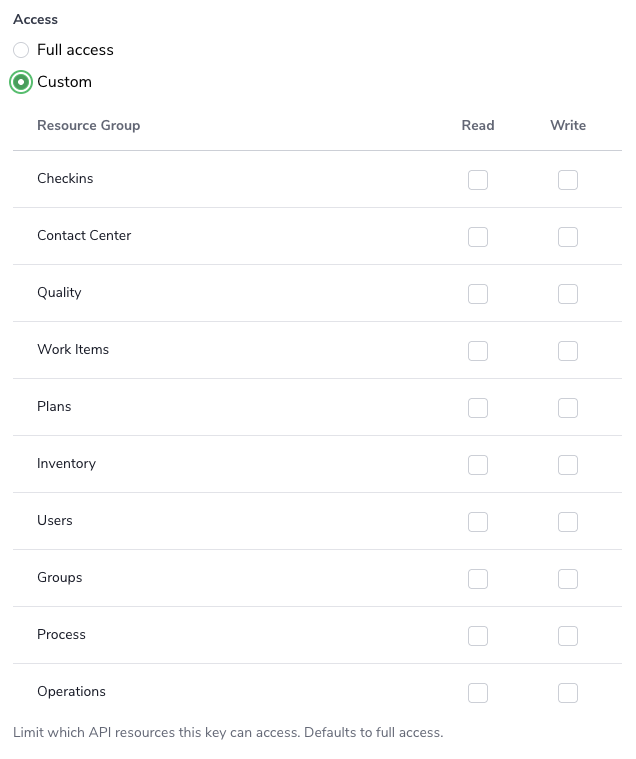
The API keys list shows each key's scopes in the Scopes column. A request made with a key that lacks the required scope returns 403 Forbidden. Each endpoint's required scope is listed in our developer documentation.
Access is fixed at creation. You cannot edit the scopes on an existing key. To change them, use Revoke and recreate (see “To revoke and recreate an API key” section below).
For security, Bramble only shows you a secret or restricted API key once, upon creation. Store the key in a safe place where you won’t lose it. If you lose the key, you can 'revoke and delete it' and create another.
When you create an API key, the value is displayed before you save it. You must copy the value before saving it, because you can’t reveal it later.
If you delete a key, any code that uses that key can no longer make API calls.
Create a new key and update the code to use it.
Open the API keys page.
In the row for the key you want to disable, click Edit, then select `Revoke`.
The window displays a confirmation. Revoke it by clicking it.
Use this to rotate a key or change its scopes. The new key is created with the same name and scopes as the source key, which you can then adjust.
Open the API keys page.
In the row for the key you want to replace, click Edit, then select Revoke and recreate.
The create form opens, prefilled with the source key's name and scopes. Adjust the Access settings if needed.
Click Create. The source key is revoked at the same moment the new key is created.
Copy and save the new key value.
To create a secret API key:
Open the API keys page.
Click Create/New API Key.
Enter a name in the Key name field.
Optionally set an expiry date
Optionally change the contact email address for this key.
Under Access, choose Full access or Custom. For Custom, tick Read and/or Write for each resource group the key needs.
Click Create.
The window displays the new key value. Copy it by clicking it.
Save the key value. You can’t retrieve it later.
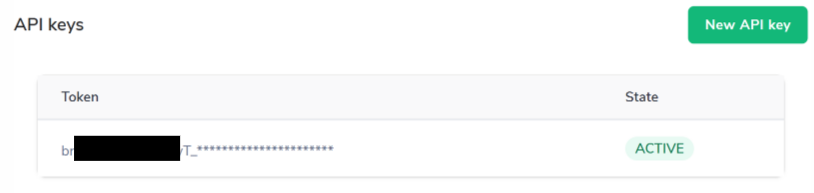
To make an authenticated request to our API, follow our Authentication guide in our developer documentation.
Pass the key as a Bearer token on the Authorization header. Replace <bramble-api-url> with the correct API URL and <api-key> with the value you copied when you created the key.
The snippets below illustrate the request shape. For the exact endpoints, query parameters, and request body fields, see the developer documentation.
GET with query parameters - List checkins for a date range:
curl -X GET "https://<bramble-api-url>/v1/checkins?from=2026-01-01&to=2026-01-31" \
  -H "Authorization: Bearer <api-key>"
POST with a JSON body - Create a checkin:
curl -X POST https://<bramble-api-url>/v1/checkins \
  -H "Authorization: Bearer <api-key>" \
  -H "Content-Type: application/json" \
  -d '{
        "data": {
          "type": "checkins",
          "attributes": {
            "started_at": "2026-01-15T09:00:00Z",
            "duration_seconds": 1800
          }
        }
      }'
If the key's scope doesn't cover the endpoint, the request returns 403 Forbidden.